
Pick the skill you want and let the Workshop hunt for it — on L2Exodus
Complete guide · for playersAugmenting a weapon is a game of chance: every attempt can give a different skill. Doing it by hand, one click at a time, until the skill you want shows up is slow and tiring.
With Auto Augment Skill you choose the skill you want and the Workshop tries again and again by itself. When it gets one of the skills you picked, it stops on its own.
You pick the weapon, the Life Stone, the Gemstone and the skills you would be happy with. You click Start. The Workshop does the rest and stops when it hits.
The Workshop is in the game's system menu, the button in the bottom-right corner of the screen.
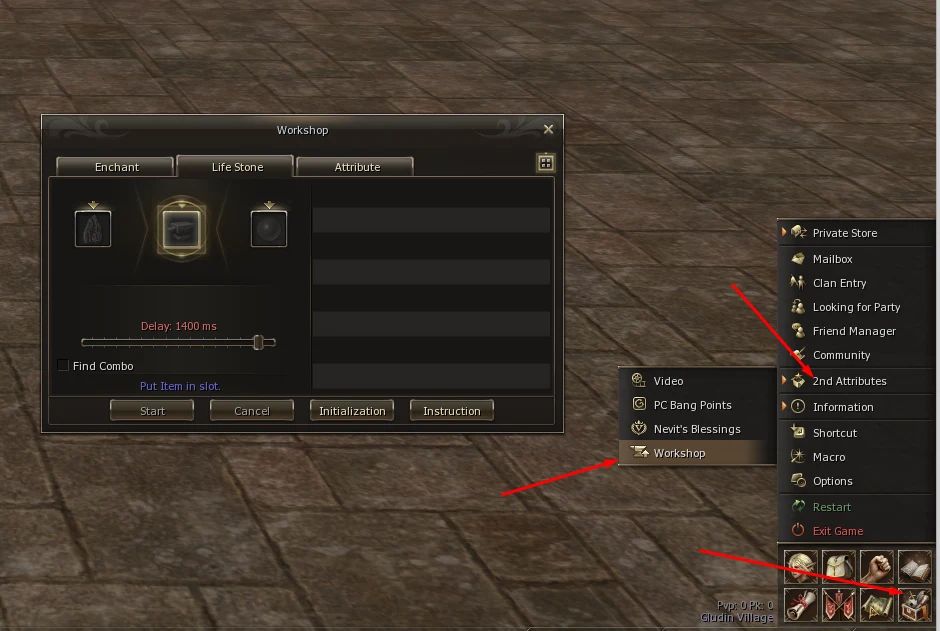
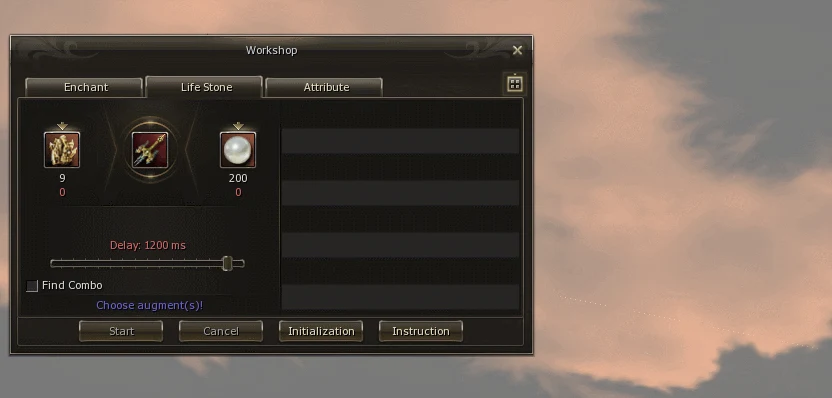
With the Workshop open (see the previous section), this is the Life Stone tab.
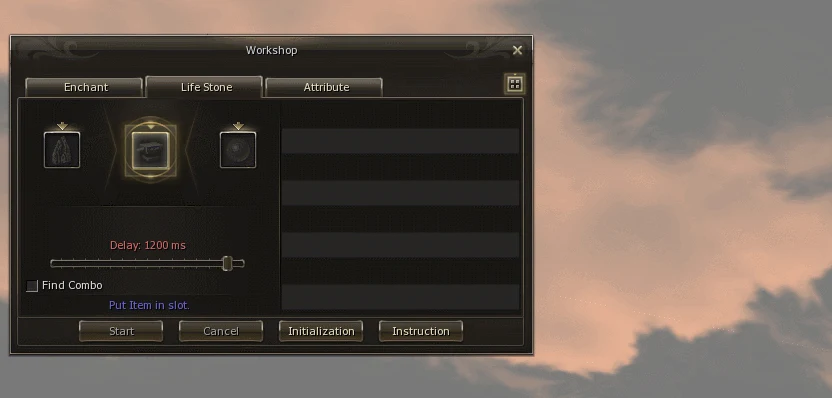
| Part | What it is for |
|---|---|
| Centre slot | The weapon you want to augment |
| Left slot | The Life Stone |
| Right slot | The Gemstone, according to the weapon's grade |
| Delay | The time between one attempt and the next |
| Square with 4 dots | Opens the skill list to choose from (top right of the window) |
| List on the right | The skills you chose to get |
| Start | Begins the automatic search |
| Cancel | Stops the search that is running |
| Initialization | Clears the screen to start a new search |
| Instruction | Opens the in-game help |
Just above the buttons, a blue message always shows the next step: Put Item in slot, Move Life Stone to slot, Move Gemstone to slot, Choose augment(s)!. If you get lost, read that line.
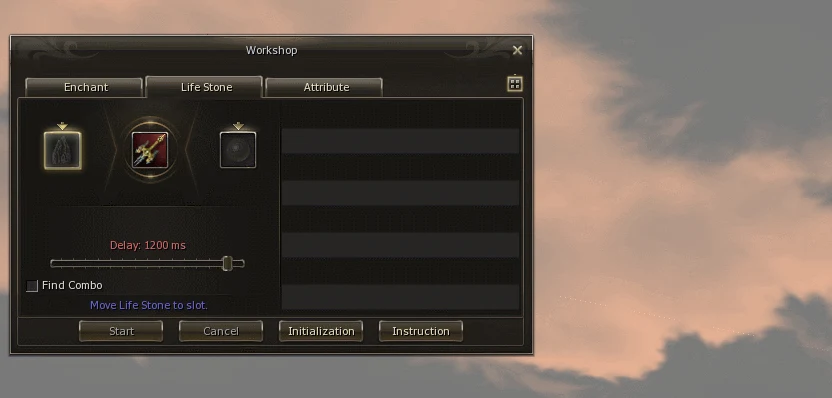
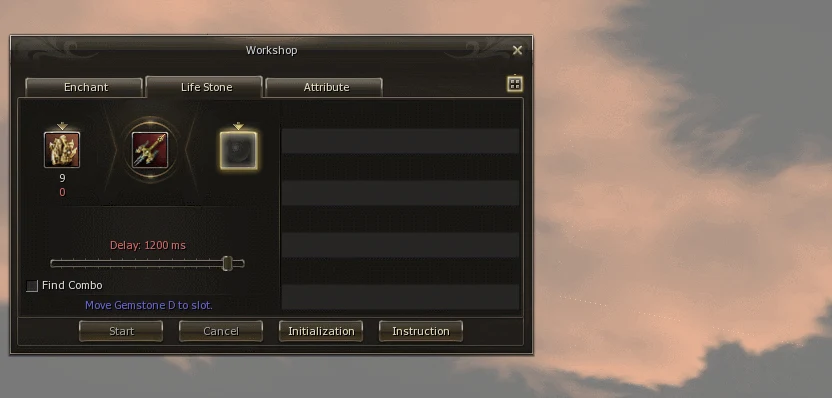
It depends on the weapon's grade. The blue message tells you which one to use (for example Move Gemstone D to slot).
Click the square with 4 dots on the right. A list opens next to the window with the available skills. Each one is marked (A) for active or (P) for passive.
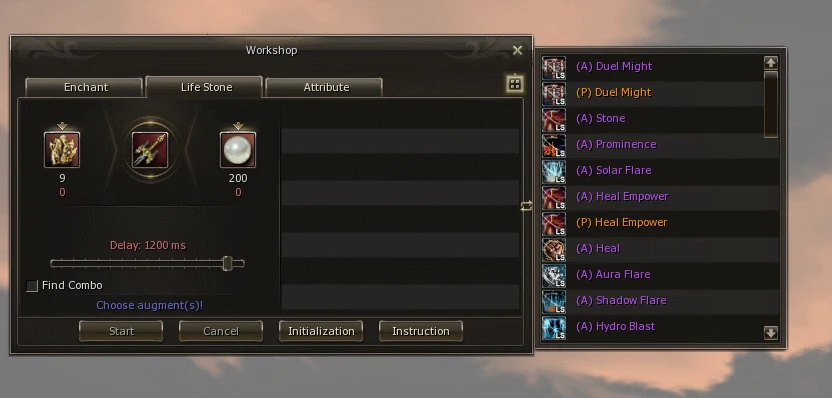
Click each skill you would be happy with. It moves to the list inside the window.
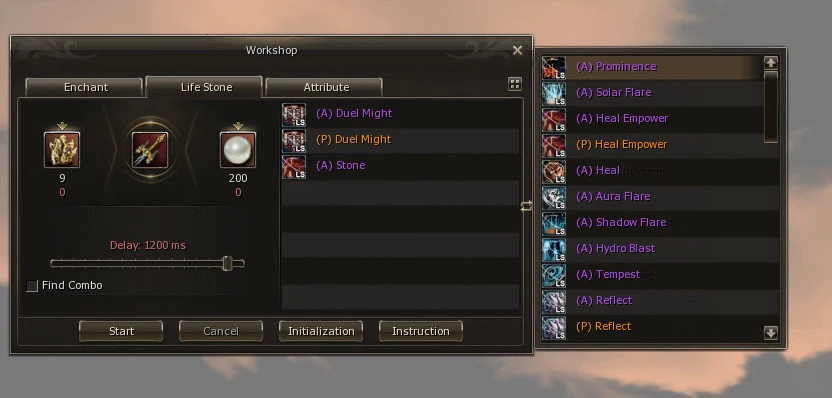
You can choose several. The more skills in the list, the sooner the system gets one of them and stops.
Click Start. While the search runs, Cancel stays enabled and Initialization is blocked.
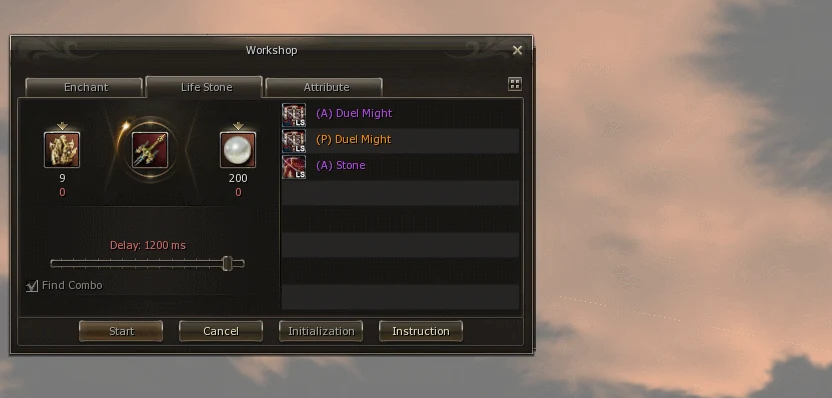
The Delay slider sets how long the system waits between one attempt and the next. The value, in milliseconds, is shown above the slider (1000 ms = 1 second).
| Delay | Effect |
|---|---|
| Smaller | Attempts come faster |
| Larger | Attempts are more spaced out |
Choose the delay before clicking Start. The slider has a minimum set by the server, and you cannot go below it.
| Button | When to use it |
|---|---|
| Cancel | You want to stop the search that is running |
| Initialization | You want to search on another weapon, or start a new search from scratch |
Before augmenting another weapon, you must click Initialization. It is mandatory. If you do not, the new search overwrites the augment you already won and you lose it.
Initialization clears the screen so you can place the new weapon and begin again. Only then click Start.
No. After Start the system tries by itself until it gets one of the skills you chose.
The system stops on its own when it gets a skill from your list.
Click Cancel.
Click Initialization first and start again from the weapon. Never skip it: without Initialization the new search overwrites the augment you already got.
Check that the three slots are full (weapon, Life Stone and Gemstone) and that you chose at least one skill. The blue message shows what is missing.
The one that matches the weapon's grade. The blue message tells you which.
back to contents ↑| Term | What it is |
|---|---|
| Workshop | The window with the Enchant, Life Stone and Attribute tabs. |
| Augment | A skill added to a weapon with a Life Stone. |
| Life Stone | The item that adds the augment to the weapon. |
| Gemstone | The item that goes along with the Life Stone, according to the weapon's grade. |
| (A) / (P) | Active skill / passive skill. |
| Delay | The time, in milliseconds, between one attempt and the next. |
| Initialization | Clears the screen to start a new search. |